



Tutorials
Six short tutorials to follow with the remote in hand. Each one takes only a few moves.

Install from the FreeStore
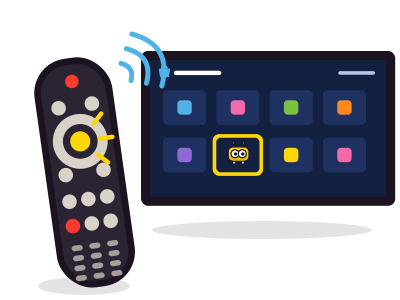
You needthe Player remote.
Open the FreeStore
On the Freebox Player home screen, open the FreeStore.
Look for “Frinkfin”
Open the Frinkfin page, published by APINETWORK. The app is free.
Install
Choose “Install”: Frinkfin joins your apps.
Add it to your favorites
In Home, Applications, select Frinkfin, then press the Info key to add it to your favorites.
Add your server
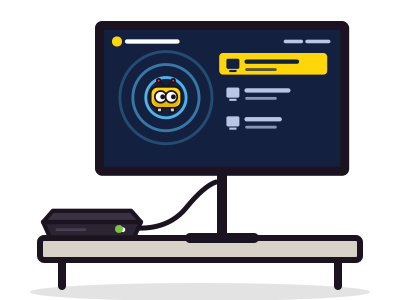
You needa running Jellyfin server.
Start Frinkfin
It looks for Jellyfin servers on your local network, on port 8096.
Choose your server
If it finds several, Frinkfin shows them all: pick yours.
Otherwise, type its address
Choose “Other server”, then type, for example,
192.168.1.20,192.168.1.20:8096orhttps://jellyfin.example.com.Choose your profile
Frinkfin shows the public profiles of the server. Yours is not there? Choose “Other account” and type your user name.
Sign in with Quick Connect
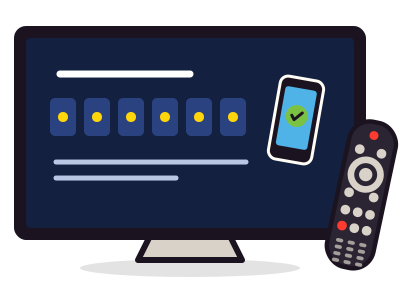
You needQuick Connect enabled on your server, and a device already signed in: phone, tablet or computer.
Choose your profile
The TV shows a six-digit Quick Connect code.
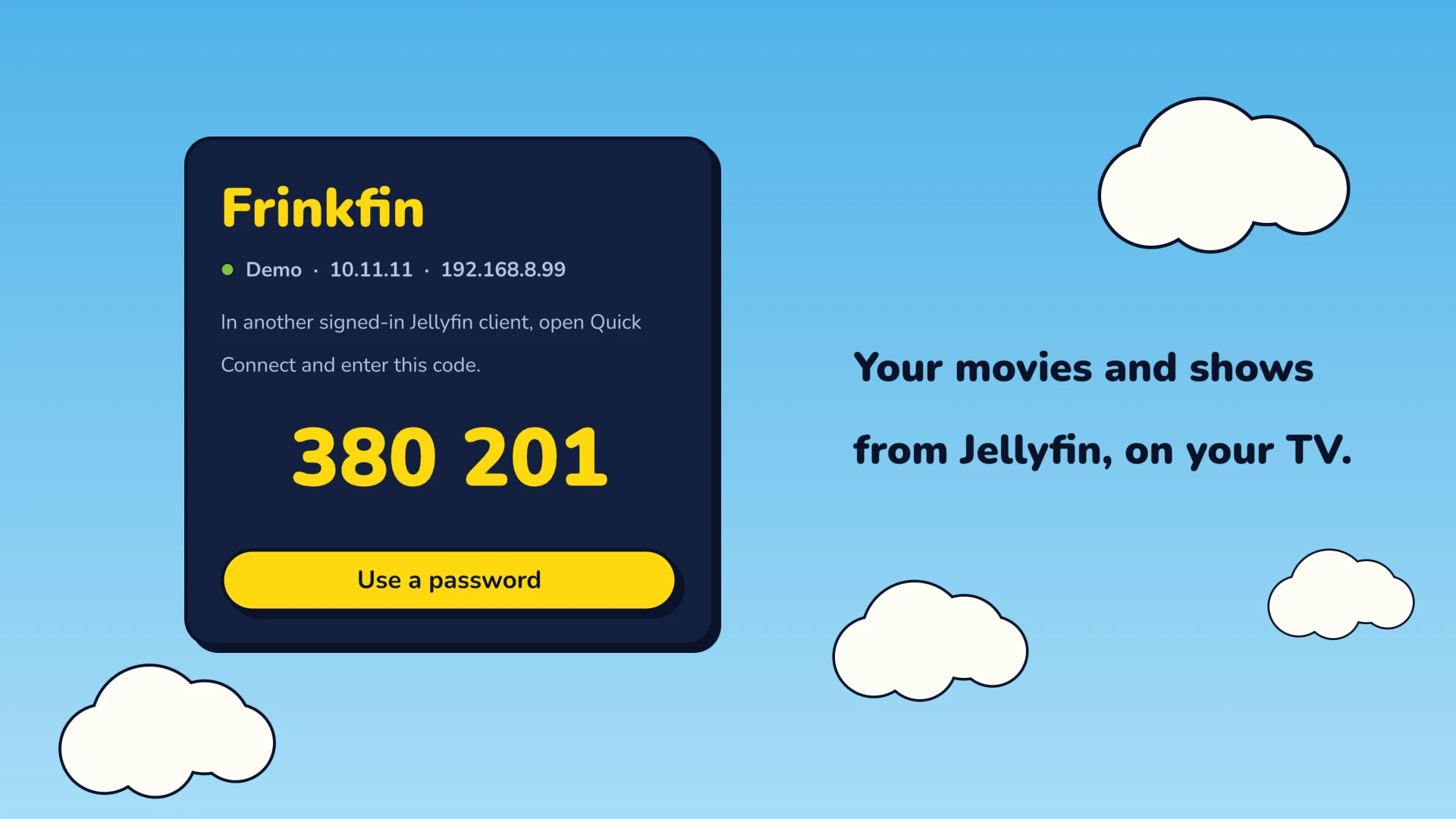
Signing in with Quick Connect: the code shows on the TV Open Jellyfin on your phone
In your profile, open Quick Connect.
Type the code
Confirm: the box signs in by itself, with no password.
No Quick Connect?Choose “Use a password” and type it with the remote.
Choose audio and subtitles
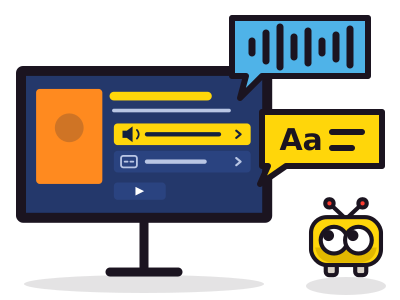
You needa movie with several tracks.
Before playback
On the movie's detail page, choose the audio track and the subtitles.
During playback
Press Menü, then choose Audio or Subtitles. The Audio and Subtitles keys on the remote are faster.
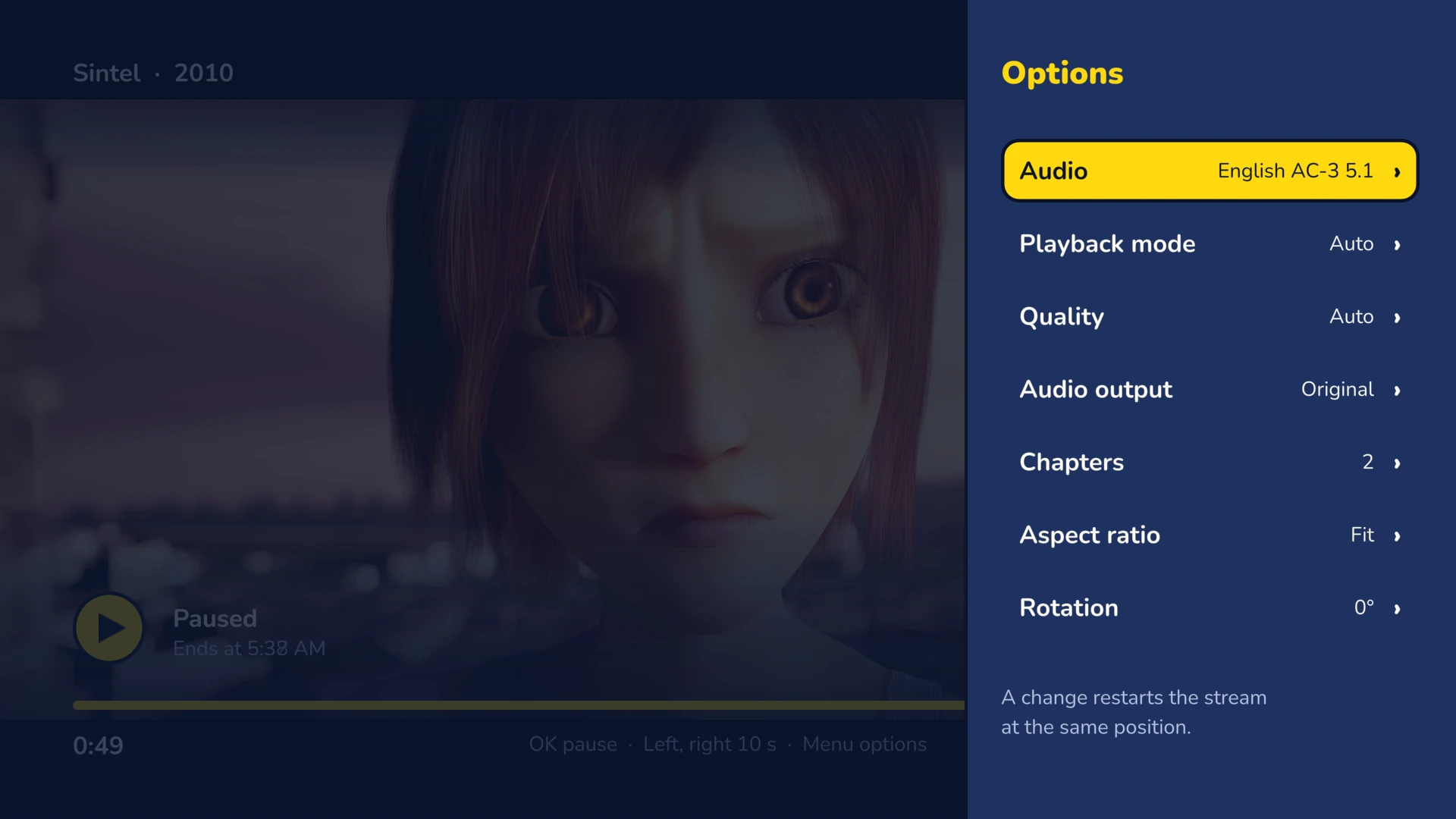
The options menu during Sintel: audio, playback mode, quality, chapters. Blender Foundation, CC BY 3.0 Add a second language
In the same menu, “Secondary subtitles” adds a second language at the top of the picture.
Put subtitles back in sync
Early or late? “Subtitle offset” moves them back into sync, in either direction.
Keep this choice for all your movies
In Settings, Languages, choose your preferred audio and subtitles. This choice applies to your whole Jellyfin account.
Several accounts and a PIN code
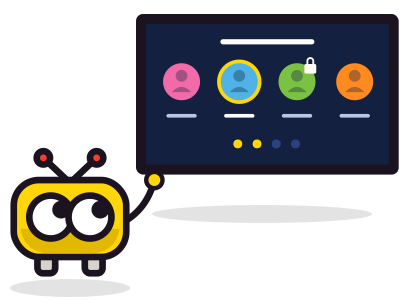
You needone Jellyfin account per person.
Open the accounts screen
In Settings, Account, choose “Change profile”.
Add an account
Choose “Add an account”, then sign in. Frinkfin keeps each account on the box.
Protect a profile
Signed in to that profile, open Settings, Account, then “Profile PIN code”.
Switch accounts
At startup, Frinkfin opens the last account. Change profile whenever you like: the PIN code is asked.
Watch away from home
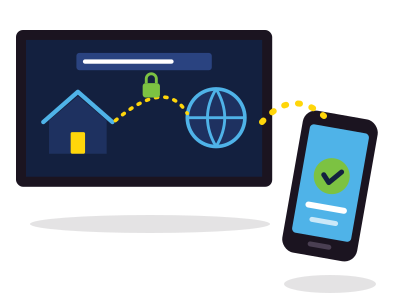
You needa server reachable over the Internet, preferably with https.
Make the server reachable
This is set up on the server side: domain name, https, open port. Frinkfin creates no tunnel.
Type the full address
In Settings, Server, type, for example,
https://jellyfin.example.com, then Test.Set the quality over the Internet
In Settings, Playback, “Quality over the Internet” sets a separate bitrate for the Internet. On Auto, Frinkfin measures the bandwidth.
Still stuck?
Read the FAQ, download the PDF manual or write to support.
ApiNetwork-Dienstleistungen
Einen Jellyfin-Server installieren oder einstellen? Die Werkstatt erledigt das
Aus der Ferne oder vor Ort, stundenweise oder im Wartungsvertrag. Der Preis wird vor der Bestellung angezeigt.